
How to Use Best Streaming Video Devices with VPN Unlimited
If you have any media streaming device like Roku, Apple TV, Android TV box, or any other, you definitely want to watch all and every movie, TV show, and sporting event you like. Unfortunately, lots of the most popular video channels and websites can be not available in your country because of their privacy policy. In such a case, VPN Unlimited is here to help you enjoy your favorite content. Download our best VPN for Roku, Amazon Fire TV, and other streaming video devices now.
- Watch any video content in full-HD quality
- 7-day FREE trial
- Unique Lifetime VPN offer
- 30-day money-back guarantee
- No CC required
VPN Unlimited is compatible with:
- Amazon Fire TV Stick
- Amazon Fire TV
- Apple TV
- WD TV
- Google Chromecast
- Android TV Box
- SkyStream TWO
- Nvidia Shield TV
- Minix Neo U1
- Matricom G-Box
- Zidoo
- Rveal Media TV Tuner
- EZ-Stream T18
- Q-Box Android TV
- Roku TV Box
- T95Z Plus
- Yoka TV
- Dolamee Android TV
- Xiaomi MI Android Box
- Nexus Player
- Razer Forge TV
- Arris STB
- DISH
- Humax
- Technicolor
- Broadcom STB
- ABOX42
3 steps to get started with VPN Unlimited on video streaming device

Download VPN Unlimited on your device

Share VPN connection over WiFi using your Mac OR Setup VPN Unlimited on your home router

Enjoy unlimited access to any video content on Apple TV, Roku, Android TV, Amazon Fire TV!
Why use VPN Unlimited for Apple TV, Android TV boxes, Google Chromecast, and other streaming devices

Enjoy any video content you like
From now on, you can access all the most popular video streaming services like Hulu, Max, and BBC iPlayer right on your Apple TV, Roku, Android TV, and Amazon Fire TV

Protect your media streaming device
With our VPN application, your Google Chromecast, WD TV, and Nvidia Shield TV are completely secured with AES-256 encryption method

Stream TV shows and movies in HD-quality
VPN Unlimited provides our users with the most extensive list of VPN servers so that you can enjoy only the best possible connection speed and watch content in the best quality

Use our VPN on unlimited devices
With a single VPN Unlimited subscription you can secure an unlimited number various devices on any platform you need
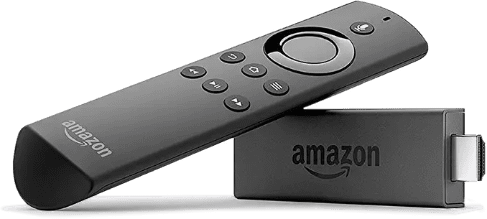
How to set up VPN Unlimited for media streaming device
To access limitless video content on your streaming device wherever you are, you should install our VPN app. Our security software will help you to connect to any virtual location you need and pretend that you’re somewhere else. To top it off, your internet connection will be completely secured.
You can’t install VPN Unlimited on your media streaming devices directly. However, you have a few other options to set up our VPN app for Android TV box, Amazon Fire TV, Roku TV, Nvidia Shield TV, Nexus Player, and other streaming devices:
- Share VPN connection over WiFi via your MacBook
- Setup our VPN software on your home router
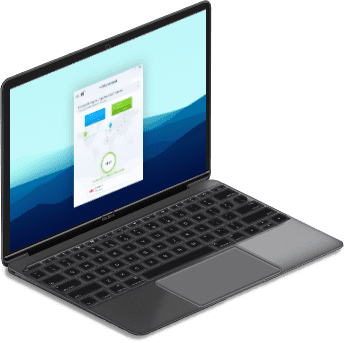
How to share VPN connection over WiFi via your MacBook
If you are a MacBook owner, you can easily setup a virtual hotspot manually and share WiFi on Mac. As a result, your MacBook will be turned into a router and all your internet traffic will be rerouted through it. All you have to do is to use the Network Sharing on Mac.
You can share internet on your Mac in the following way:
- Configure VPN server connection via L2TP/IPSec protocol
- Enable Internet Sharing itself
That’s it! Check out our detailed manual to easily use VPN Unlimited on your streaming device right away.
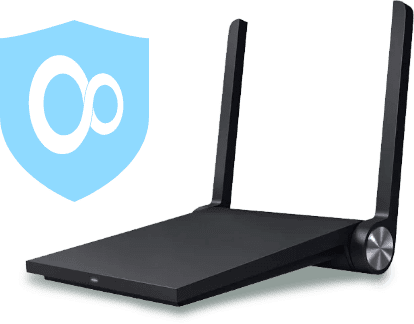
How to set up VPN Unlimited on your home router
In case you have a router, you can also setup VPN on your home networking device. To top it off, you will also encrypt your internet traffic and will be able to freely surf the web from any device connected to your router.
The process of VPN setup on your router can generally be described in the following way:
- Create VPN configuration files for OpenVPN or L2TP setup
- Configure OpenVPN or L2TP client for your home router
You can also check out our detailed manual to easily use VPN Unlimited on your streaming device right now.