


How to Find And Change Your IP Address On Different Platforms
Every day connecting to the internet we send packets of information to the worldwide web. And to communicate with the world we need an identifier to receive information back. In the real world, this marker is our physical address, that reflects our location, residence, or business. In the online world, this role is played by the IP address.
Each device connected to the internet has its own unique identifier. That is a Private IP address. But when you ask “what is my IP address”, you are usually supposed to know your Public IP. A public IP address is assigned by the Internet Service Provider. And when the devices are connected to the internet they use your Public IP instead of a hidden Private IP address.
In this article we will find the answers to the following questions:
- What are your Private IP and Public IP?
- How to find your IP address with IP Chicken, or standard Windows, Mac, or iPhone tools.
- How to change your IP Address on Mac, iPhone, Roku TV, and any other device?
Let’s start our journey.




How To Change Your IP Address with VPN
When it comes to your internet privacy, usually you need not only to hide your IP address but also to change it. Luckily, VPN Unlimited can offer an ultimate solution.
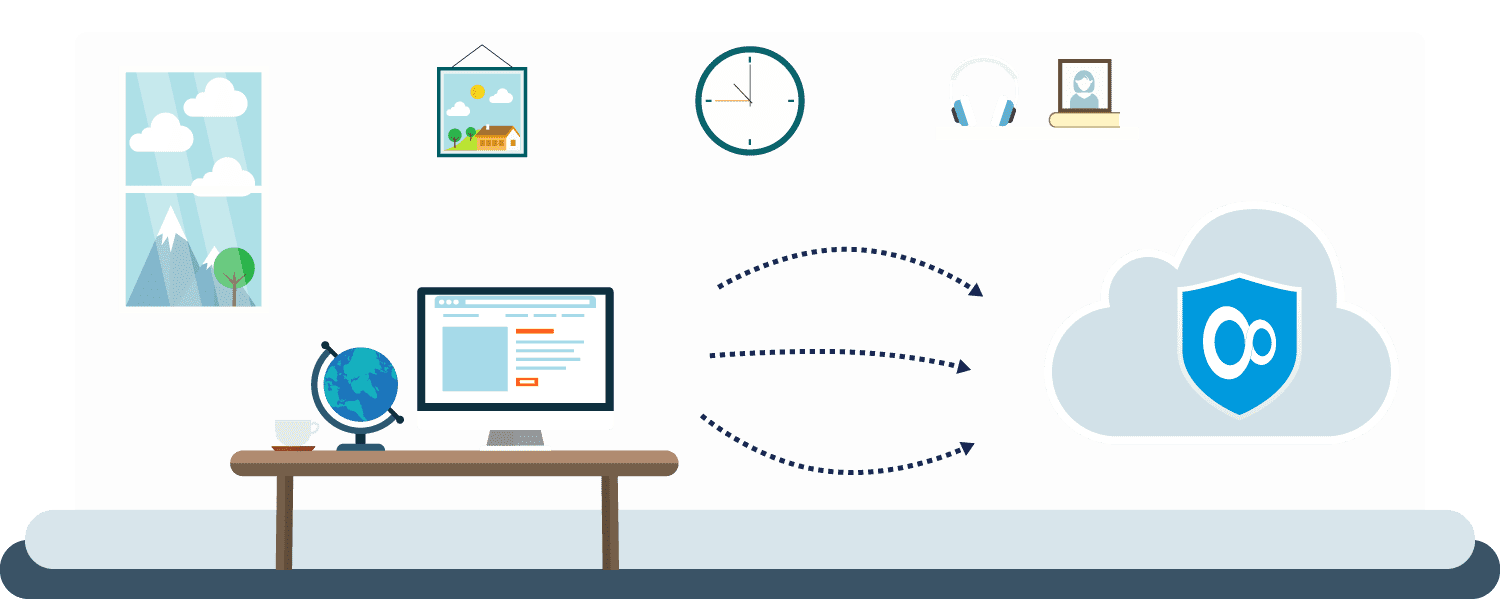
Setting up a VPN Unlimited app you encrypt your traffic and reroute it through our lightning-fast VPN servers. AS a result, your IP is changed, and you can browse the web privately. With an extra fee, you can get a private VPN server or Private IP address, with boosted speed and performance.
VPN Unlimited is available on a large variety of devices on different platforms: iOS, macOS, Android, Windows, Roku TV, etc. You can even set up a VPN connection right on your router to protect the whole network of devices connected to it.